
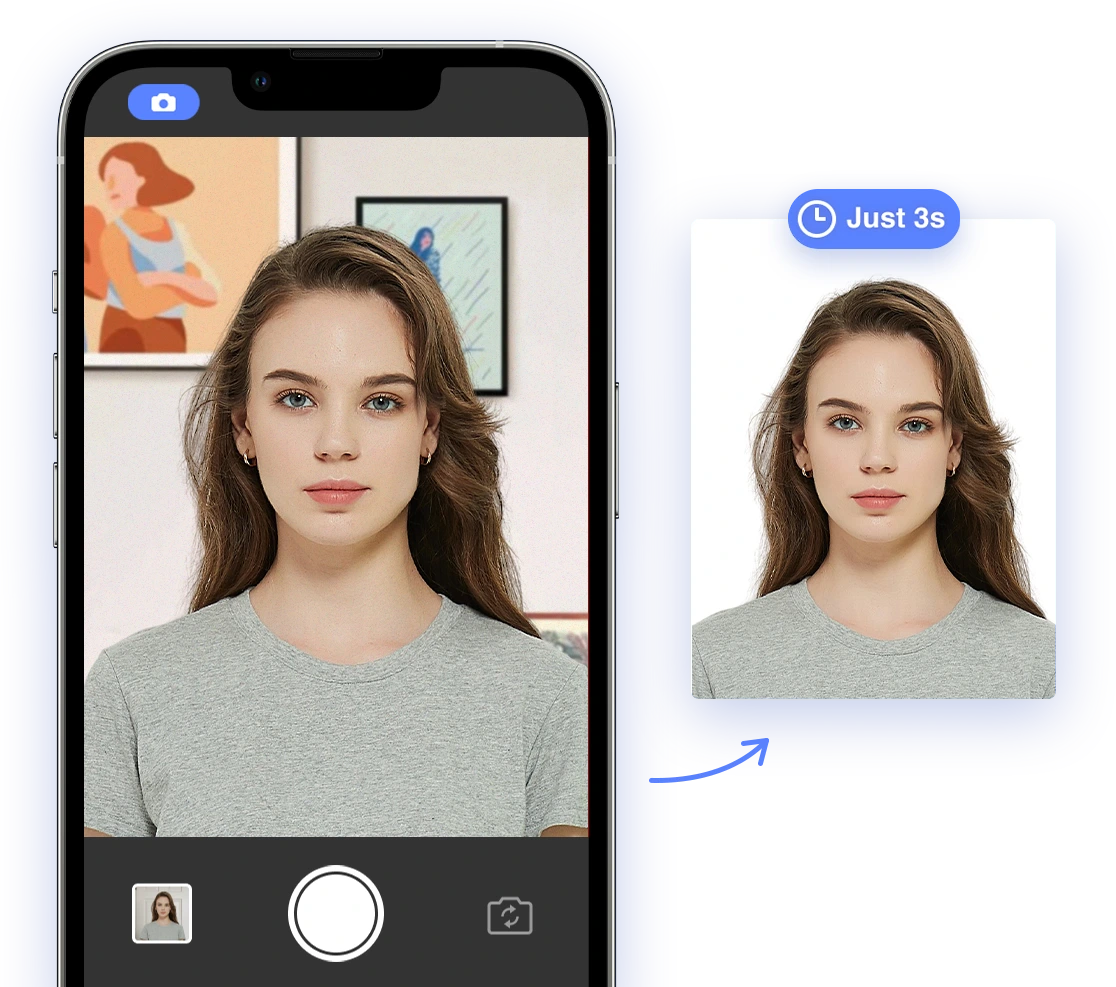
DIY Passport Photos for Seniors: Easy Guide with AI [2026]
Are you a senior looking to renew your passport but find it challenging to visit a photo studio? Do you prefer staying in the comfort of your own home? Taking your own passport photo at home is easier than you might think, especially with the help of AI technology. This guide is designed to help you, step-by-step, through the process of taking your own passport photo at home, no matter your technical skills or mobility. Let's get started!Understanding the Challenges Seniors Face
As we age, certain tasks can become more difficult. When it comes to passport photos, seniors may face unique challenges such as:- Limited Mobility: Getting to a photo studio can be difficult or impossible for some. We understand this can be a significant hurdle, but we're here to help you overcome it.
- Technical Skills: New technologies can be daunting. Don't worry, we'll make it easy. Our step-by-step instructions are designed to be simple and straightforward.
- Strict Photo Requirements: Passport photos have strict rules, and it can be hard to meet them. AI is your friend! It can automatically check your photo to ensure it meets all the official guidelines.
- Appearance-Related Issues: Changes in hair color, wrinkles, and needing to wear eyeglasses (sometimes) can complicate things. We'll address these concerns and provide practical solutions.
Why Use AI for Your Passport Photo?
AI-powered passport photo tools are a game-changer for seniors. They offer:- Ease of Use: Simple interfaces and step-by-step instructions make the process stress-free. Many apps are designed with seniors in mind, prioritizing intuitive navigation.
- Accessibility: Many tools are available on smartphones and tablets, which can be easier to handle than computers. Plus, some tools offer voice guidance and screen reader compatibility.
- Compliance Guarantee: AI checks your photo in real-time to ensure it meets all official requirements, reducing the risk of rejection.
- Convenience: Take your photo at home, on your own time, without having to travel. No need to worry about transportation or scheduling appointments.
- Cost-Effectiveness: Often cheaper than professional photo services. Save money while ensuring your photo is perfect.
Step-by-Step Guide to DIY Passport Photos with AI
- Choose the Right AI Passport Photo Tool:
- Consider user-friendliness and accessibility features. Look for tools with voice guidance, large buttons, and clear instructions.
- Some popular options include PhotoAiD (excellent feedback and high success rate), Snap2Pass (validates without altering appearance), Passport Photo Maker (user-friendly with instant feedback) and AI IDs & Passport Photo Maker (supports multiple sizes, can adjust resolution and background color) and NoteGPT(AI checks size, head position, lighting and background).
- Always check for updated app details, user reviews and pricing before choosing a tool.
- Prepare Your Setting:
- Find a well-lit room with a plain white or off-white background. A blank wall or even a sheet will work.
- Make sure there are no shadows on your face or the background. Good lighting is key to a compliant photo. Watch this helpful video for tips: Passport Photo Tips.
- Dress Appropriately:
- Wear plain, everyday clothing. Avoid uniforms or clothing that looks like a uniform.
- Choose a color that contrasts with the white background so you don't blend in. See what NOT to do in What NOT to do for your passport photo.
- Position Yourself:
- Sit or stand directly in front of the camera. If you have limited mobility, ask someone to help you position yourself.
- Ensure your head and shoulders are visible in the frame. Make sure your hair doesn't cover your face.
- Look directly at the camera with a neutral expression. Relax and avoid smiling or frowning. Get some posing inspiration from: Easiest Hack to INSTANTLY Look Photogenic
- Take the Photo:
- Use the AI passport photo tool to guide you through the process. It will tell you if your photo meets all the requirements.
- Take several photos to choose from. The more options you have, the better.
- Review and Adjust:
- Review the photos and select the one that looks best and meets all requirements.
- The AI tool will automatically crop, resize, and adjust the background if needed. Trust the AI to make the necessary adjustments. If your photo is rejected due to exposure, see Why my passport photo was rejected: Exposure for tips.
- Download and Print:
- Download the finished photo and print it at home or at a local photo printing service like Walgreens or CVS. Many apps provide a template to print at the correct size. Here's a DIY guide: HOW TO MAKE YOUR OWN PASSPORT SIZE PHOTOS FOR FREE
Tips for Seniors with Limited Mobility
- Use a Tripod or Ask for Help: If you have trouble holding the camera steady, use a tripod or ask a friend or family member to take the photo for you. Their assistance can make the process much easier.
- Find a Comfortable Spot: Sit in a comfortable chair with good back support. Comfort is important for staying relaxed during the photo session.
- Take Breaks: If you get tired, take breaks and come back to it later. Don't rush the process.
- Consider At-Home Services: Some professional photographers offer at-home passport photo services. This can be a convenient option if you prefer not to take the photo yourself.
Addressing Common Issues
- Eyeglasses: Generally, eyeglasses are not allowed in passport photos due to potential glare. If you must wear them for medical reasons, provide a doctor's note and ensure there is no glare on the lenses. Consider tilting your head slightly to minimize glare.
- Hearing Aids: Hearing aids are generally allowed as long as they do not obstruct your face. Check with your chosen AI passport photo tool or your passport acceptance facility for specific guidelines.
- Hair Color: Changing hair color is generally not an issue, as long as your current photo accurately represents your current appearance. Gray hair is perfectly acceptable. If you want to know more about altering your passport photo due to hair changes, read Altering My Passport Photo: From Gray Hair to a New Look
Best AI Tools for Seniors: A Comparison
To help you choose the right tool, here's a comparison of some popular AI passport photo makers, keeping in mind ease of use and accessibility for seniors:| Tool | Ease of Use | Accessibility Features | Compliance Guarantee | Price | Notes |
|---|---|---|---|---|---|
| PhotoAiD | Very Easy | Yes | 200% Money-Back | $5-10 | Excellent user feedback and a high success rate, combines AI checks with expert human review. |
| Snap2Pass | Easy | Limited | Compliance Check | Free/Premium | Validates photos against requirements without altering appearance, covers many document types and countries. |
| Passport Photo Maker | Easy | Limited | Compliance Check | Free/Premium | User-friendly, offers instant feedback. |
| AI IDs & Passport Photo Maker | Moderate | Basic | Compliance Check | Free/Premium | Supports multiple sizes and can adjust resolution and background color. May require a bit more technical know-how. |
| NoteGPT | Easy | N/A | Compliance Check | Free | AI checks size, head position, lighting and background. Offers fast processing. |
Always check for updated features, pricing, and user reviews before choosing a tool. Consider trying a free trial if available.
How to Avoid Rejection
- Follow All Instructions Carefully: Read the passport photo requirements thoroughly before you start. The U.S. Department of State website has detailed guidelines.
- Use a Reliable AI Tool: Choose an AI tool that guarantees compliance and offers real-time feedback. This will give you added peace of mind.
- Get a Second Opinion: If you're unsure about your photo, ask a friend or family member to review it. A fresh pair of eyes can catch things you might miss.
- Consider Professional Review: Some AI tools offer expert verification services for an extra layer of assurance. This is a good option if you want extra confidence. If your passport photo is rejected, you can read more about it in What if my passport photo is rejected?